Analytics Integration
Track chatbot performance, measure customer engagement, and gain insights with integrated analytics. Connect with Google Analytics 4, Meta Pixel, and Mixpanel.
Overview
WooAI Chatbot Pro provides comprehensive analytics integration to help you understand how customers interact with your chatbot. Track conversations, measure engagement, and attribute conversions to chatbot interactions.
Supported Platforms
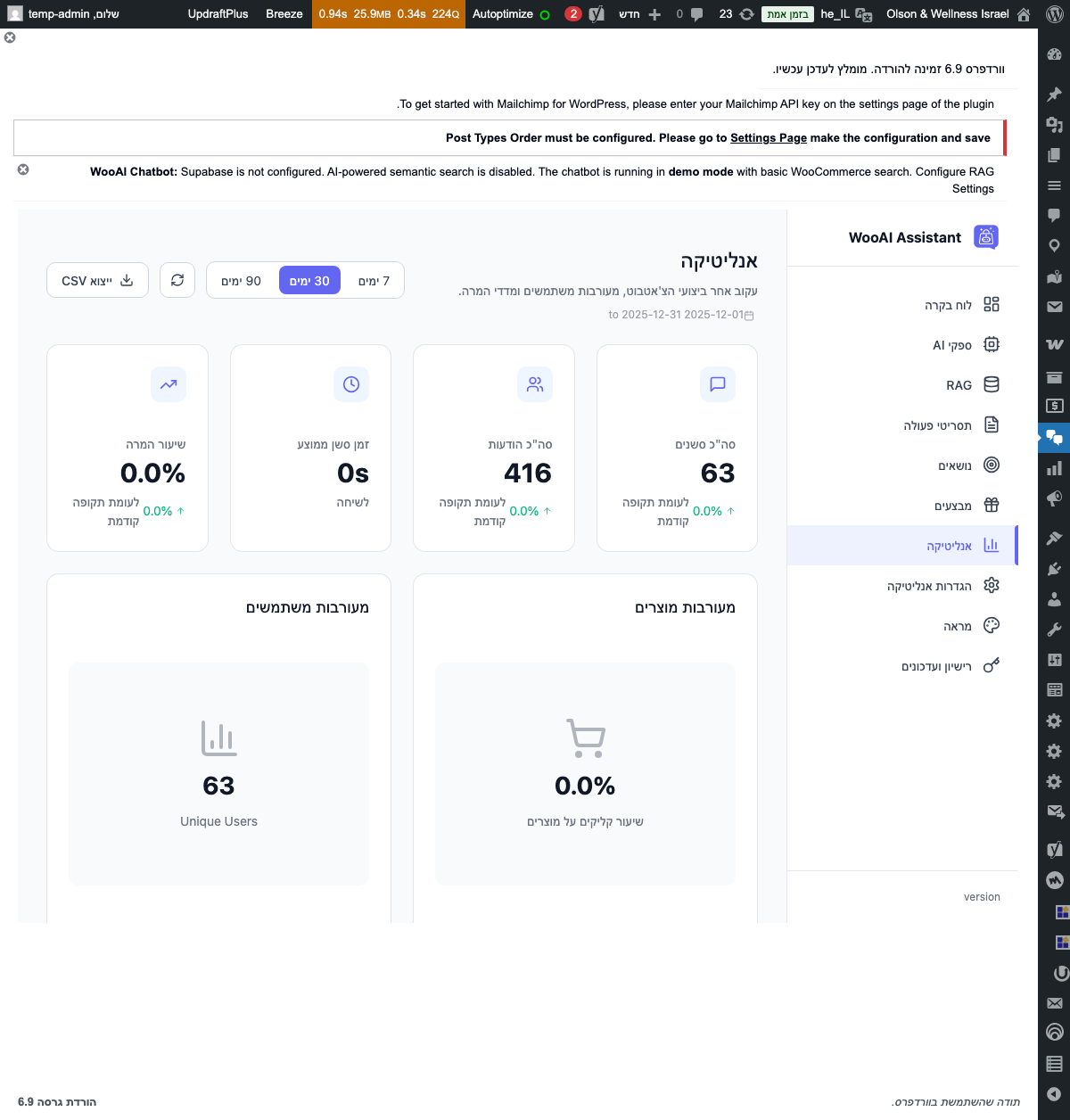
Built-in Analytics Dashboard
WooAI Chatbot Pro includes a built-in analytics dashboard that provides key metrics without any external integration required.
Key Metrics
Dashboard Metrics Explained
| Metric | Description | Good Value |
|---|---|---|
| Total Conversations | Number of chat sessions started by visitors | Increasing trend |
| Active Users | Unique visitors who interacted with the chatbot | Increasing trend |
| Messages Sent | Total messages sent by customers | Higher = more engagement |
| Resolution Rate | Percentage of conversations resolved without human escalation | > 80% |
| Avg. Response Time | Average time for AI to generate a response | < 3 seconds |
| Product Queries | Questions about specific products (RAG searches) | Tracks demand |
| Conversion Assist | Orders where customer used chatbot before purchase | > 10% |
Viewing Analytics
-
Open Dashboard
Navigate to
WooAI Chat→Dashboardin your WordPress admin. -
Select Date Range
Use the date picker to view data for specific time periods (7 days, 30 days, custom).
-
Review Metrics
Analyze the key performance indicators and trend charts.
-
Export Data
Click Export to download analytics data as CSV for further analysis.
Google Analytics 4 Integration
Connect your chatbot to Google Analytics 4 to track events alongside your existing website analytics.
Prerequisites
- Google Analytics 4 property set up for your website
- GA4 tracking code installed on your site
- Measurement ID (starts with G-)
Setting Up GA4
-
Get Your Measurement ID
In GA4, go to Admin → Data Streams → Select your web stream → Copy the Measurement ID.
-
Configure in WooAI
Go to
WooAI Chat→Analytics→ Enable Google Analytics 4. -
Enter Measurement ID
Paste your GA4 Measurement ID (e.g.,
G-XXXXXXXXXX). -
Save and Verify
Save settings and use GA4 DebugView to verify events are being received.
If GA4 is already installed on your site via GTM or direct integration, WooAI will automatically use the existing gtag instance. No additional configuration needed.
GA4 Events Tracked
Creating GA4 Reports
Build custom reports in GA4 using WooAI events:
- Go to GA4 → Explore → Create new exploration
- Add
wooai_events as metrics - Segment by dimensions like page, device, or user type
- Save report for regular monitoring
Meta Pixel Integration
Connect with Meta (Facebook) Pixel to attribute conversions and build retargeting audiences based on chatbot interactions.
Setting Up Meta Pixel
-
Get Your Pixel ID
In Meta Business Suite, go to Events Manager → Select your pixel → Copy the Pixel ID.
-
Configure in WooAI
Go to
WooAI Chat→Analytics→ Enable Meta Pixel. -
Enter Pixel ID
Paste your Meta Pixel ID (numeric ID, e.g.,
1234567890). -
Verify Installation
Use the Meta Pixel Helper Chrome extension to verify events are firing correctly.
Meta Pixel Events
| Event | Type | When Fired |
|---|---|---|
Contact |
Standard | Chat widget opened |
ViewContent |
Standard | Product inquiry via chat |
AddToCart |
Standard | Product added from chat recommendation |
Lead |
Standard | Email collected via playbook |
CustomizeProduct |
Custom | Size/variant question answered |
Building Audiences
Create custom audiences in Meta Ads Manager based on chatbot interactions:
- Engaged Users: People who sent messages to your chatbot
- Product Interest: People who inquired about specific products
- High Intent: People who used chat before adding to cart
- Support Seekers: People who triggered support-related playbooks
Create a retargeting campaign for users who asked about products but didn't purchase. These are high-intent visitors who may need a small nudge to convert.
Mixpanel Integration
Connect with Mixpanel for advanced product analytics, user journey tracking, and behavioral analysis.
Setting Up Mixpanel
-
Get Your Project Token
In Mixpanel, go to Settings → Project Settings → Copy the Project Token.
-
Configure in WooAI
Go to
WooAI Chat→Analytics→ Enable Mixpanel. -
Enter Project Token
Paste your Mixpanel project token.
-
Configure User Identification
Enable Identify Users to track logged-in users across sessions.
Mixpanel Events
WooAI sends detailed events to Mixpanel with rich properties for analysis:
Mixpanel User Properties
WooAI sets the following user properties in Mixpanel:
| Property | Description |
|---|---|
$name |
Customer name (if logged in) |
$email |
Customer email (if known) |
chat_sessions_count |
Total chat sessions by this user |
last_chat_date |
Date of most recent chat session |
total_messages_sent |
Lifetime message count |
products_inquired |
List of products asked about |
Complete Event Reference
Full list of events tracked by WooAI Chatbot Pro across all analytics platforms:
| Event | GA4 | Meta | Mixpanel |
|---|---|---|---|
| Chat Opened | ✓ | ✓ | ✓ |
| Message Sent | ✓ | - | ✓ |
| Product Inquiry | ✓ | ✓ | ✓ |
| Add to Cart (via chat) | ✓ | ✓ | ✓ |
| Playbook Triggered | ✓ | - | ✓ |
| Email Collected | ✓ | ✓ | ✓ |
| Chat Closed | ✓ | - | ✓ |
| Session Ended | ✓ | - | ✓ |
Privacy & Compliance
WooAI Chatbot Pro is designed with privacy in mind and supports GDPR compliance.
Data Collection
- No PII in events: Analytics events don't include personal identifiable information by default
- Anonymization: User IDs are hashed before being sent to analytics platforms
- Consent integration: Respects cookie consent settings on your site
Cookie Consent Integration
WooAI integrates with popular consent management platforms:
- CookieYes
- Complianz
- GDPR Cookie Consent
- Borlabs Cookie
In GDPR regions, ensure you have proper consent before enabling analytics tracking. WooAI will only fire analytics events after consent is granted if a consent management platform is detected.
Disabling Analytics
To completely disable analytics tracking:
- Go to
WooAI Chat→Analytics - Toggle OFF all analytics platforms
- Optionally, disable the built-in dashboard data collection
- Save settings
Troubleshooting
Events Not Appearing in GA4
- Check Measurement ID is correct (starts with G-)
- Use GA4 DebugView in real-time to verify events
- Clear browser cache and test in incognito mode
- Ensure GA4 is properly installed on your site
- Check for JavaScript errors in browser console
Meta Pixel Events Missing
- Verify Pixel ID is numeric (not alphanumeric)
- Use Meta Pixel Helper to debug
- Check Events Manager for incoming events
- Ensure Meta Pixel base code is installed
Mixpanel Not Receiving Data
- Verify project token is correct
- Check Mixpanel Live View for events
- Ensure user identification is configured if tracking registered users
Built-in Dashboard Shows No Data
- Verify chat widget is active and visible
- Check that conversations are actually occurring
- Select correct date range in dashboard
- Clear WordPress transients cache