AI Providers Configuration
Configure and manage multiple AI providers including Google Gemini, OpenAI GPT, and Claude. Set up API keys, select models, and configure fallback options for reliable chatbot performance.
Overview
WooAI Chatbot Pro supports multiple AI providers, giving you flexibility to choose the best solution for your needs. The plugin features a multi-provider architecture that allows you to:
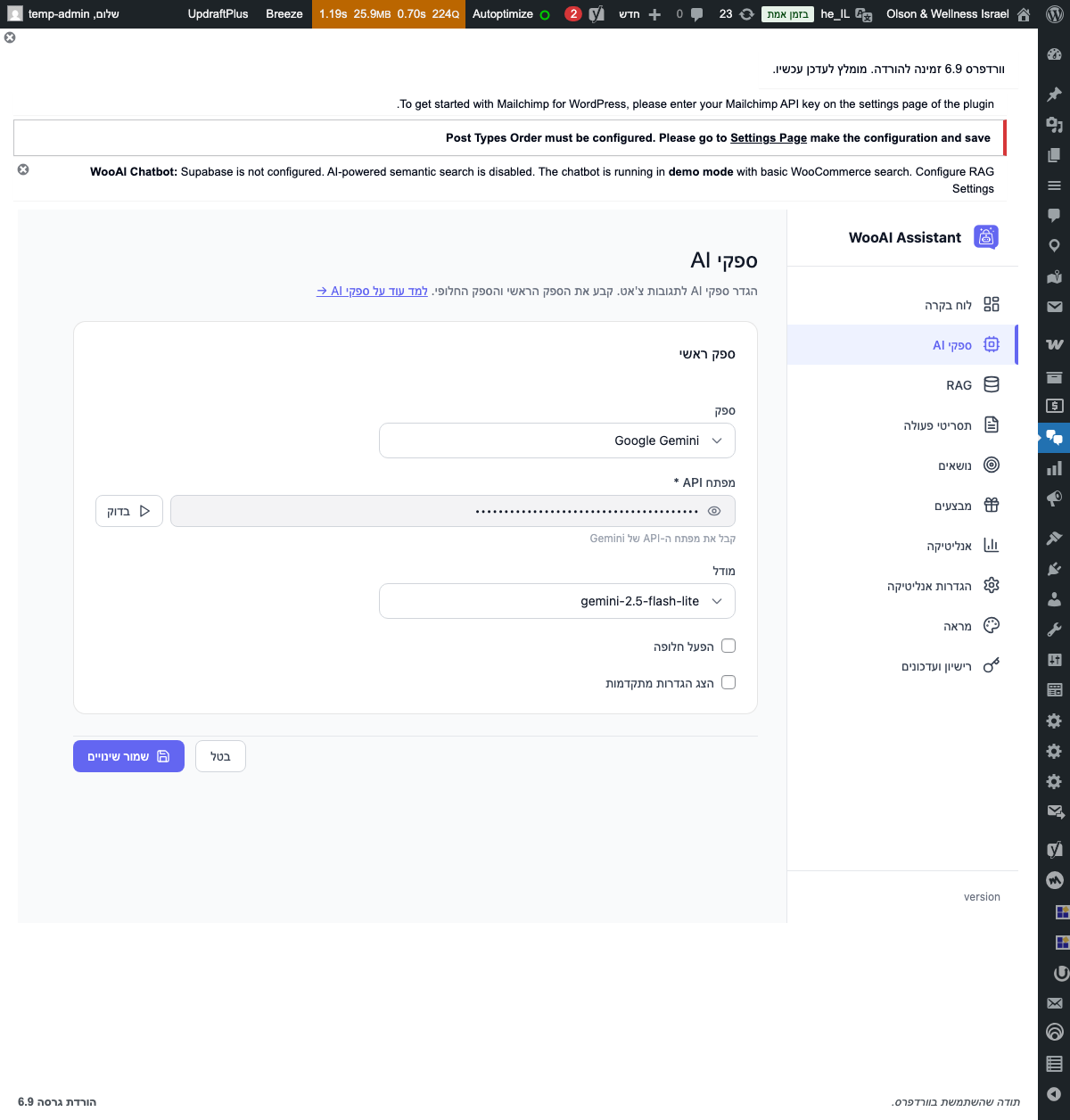
Accessing AI Provider Settings
To configure your AI providers:
-
Navigate to Settings
In your WordPress admin, go to
WooAI Chat→AI Providersfrom the left sidebar menu. -
Select Provider Tab
Click on the tab for the AI provider you want to configure: Google Gemini, OpenAI, or Claude.
-
Enter API Credentials
Input your API key and select your preferred model from the dropdown options.
-
Save Changes
Click the Save Settings button to apply your configuration.
Google Gemini (Recommended)
Google Gemini is the recommended provider for WooAI Chatbot Pro due to its excellent performance, competitive pricing, and seamless integration with Google's ecosystem.
Getting Your Gemini API Key
Follow these steps to obtain your Google Gemini API key:
-
Visit Google AI Studio
Go to aistudio.google.com and sign in with your Google account.
-
Navigate to API Keys
Click on Get API key in the left sidebar, or go directly to API Keys section.
-
Create API Key
Click Create API key button. You can either create a key in a new project or select an existing Google Cloud project.
-
Copy Your Key
Once generated, copy the API key immediately. For security reasons, you won't be able to view it again after leaving the page.

Google Gemini offers a generous free tier that includes up to 60 queries per minute for Gemini 1.5 Flash. This is perfect for small to medium WooCommerce stores.
Available Gemini Models
| Model | Best For | Context Window | Pricing |
|---|---|---|---|
gemini-1.5-flash |
Fast responses, general queries | 1M tokens | Free tier available |
gemini-1.5-pro |
Complex reasoning, detailed analysis | 2M tokens | Pay per use |
gemini-2.0-flash |
Latest model, best performance | 1M tokens | Pay per use |
Configuring Gemini in WooAI
-
Select Google Gemini
In the AI Providers tab, click on Google Gemini to expand its settings.
-
Enter API Key
Paste your API key into the API Key field. The key will be securely stored in your WordPress database.
-
Choose Model
Select your preferred model from the Model dropdown. We recommend
gemini-1.5-flashfor most use cases. -
Set as Primary (Optional)
Enable the Set as Primary Provider toggle if you want Gemini to handle all chatbot queries.
Never share your API key publicly or commit it to version control. The plugin stores your key securely, but always treat it as sensitive information.
OpenAI GPT
OpenAI's GPT models are renowned for their exceptional language understanding and generation capabilities. They're an excellent choice for sophisticated customer interactions.
Getting Your OpenAI API Key
-
Create an OpenAI Account
Visit platform.openai.com and sign up or log in to your account.
-
Navigate to API Keys
Go to API Keys in your account settings.
-
Create New Secret Key
Click Create new secret key, give it a descriptive name like "WooAI Chatbot", and copy the generated key.
-
Set Up Billing
Ensure you have billing configured in your OpenAI account, as API usage requires payment beyond the free credits.
Available OpenAI Models
| Model | Best For | Context Window | Pricing |
|---|---|---|---|
gpt-4o |
Fastest GPT-4 class model | 128K tokens | $5/$15 per 1M tokens |
gpt-4o-mini |
Cost-effective, fast responses | 128K tokens | Budget-friendly |
gpt-4-turbo |
Complex reasoning tasks | 128K tokens | Premium pricing |
Configuring OpenAI in WooAI
-
Select OpenAI
In the AI Providers tab, click on OpenAI to expand its configuration options.
-
Enter API Key
Paste your OpenAI API key (starts with
sk-) into the API Key field. -
Select Model
Choose your preferred model.
gpt-4o-minioffers the best balance of performance and cost. -
Configure Organization ID (Optional)
If you're part of multiple OpenAI organizations, enter your Organization ID to ensure correct billing.
Anthropic Claude
Claude is Anthropic's AI assistant, known for its thoughtful responses, strong reasoning abilities, and emphasis on being helpful and harmless.
Getting Your Claude API Key
-
Visit Anthropic Console
Go to console.anthropic.com and create an account or sign in.
-
Navigate to API Keys
Click on API Keys in the left sidebar of your dashboard.
-
Generate New Key
Click Create Key, provide a name for identification, and copy the generated API key.
-
Add Credits
Ensure you have credits in your Anthropic account. New accounts may receive free credits for testing.
Available Claude Models
| Model | Best For | Context Window | Pricing |
|---|---|---|---|
claude-3-5-sonnet |
Best balance of intelligence and speed | 200K tokens | Recommended |
claude-3-opus |
Most capable, complex analysis | 200K tokens | Premium pricing |
claude-3-haiku |
Fastest, cost-effective | 200K tokens | Budget-friendly |
Configuring Claude in WooAI
-
Select Claude
In the AI Providers tab, click on Claude (Anthropic) to expand its settings.
-
Enter API Key
Paste your Anthropic API key (starts with
sk-ant-) into the API Key field. -
Choose Model
Select
claude-3-5-sonnetfor the best overall performance, orclaude-3-haikufor cost optimization.
Fallback Provider Configuration
WooAI Chatbot Pro allows you to configure fallback providers to ensure your chatbot remains operational even if the primary provider experiences issues.
How Fallback Works
When a request to the primary provider fails (due to rate limits, downtime, or errors), the plugin automatically retries the request with your configured fallback provider. This happens seamlessly without any user intervention.
Setting Up Fallback
-
Configure Multiple Providers
First, ensure you have at least two AI providers configured with valid API keys.
-
Set Primary Provider
In the provider settings, toggle Set as Primary for your preferred main provider.
-
Enable Fallback
Toggle Enable as Fallback on your secondary provider(s).
-
Set Fallback Order
If you have multiple fallbacks, drag and drop to arrange the fallback priority order.
We recommend setting up Google Gemini as your primary provider and OpenAI GPT-4o-mini as your fallback. This combination offers excellent reliability with cost-effective redundancy.
Testing Your Configuration
After configuring your AI providers, it's important to test that everything works correctly.
Using the Test Feature
-
Navigate to Test Panel
In the AI Providers settings, locate the Test Connection section at the bottom of each provider card.
-
Click Test Button
Click the Test API Connection button to verify your API key and selected model work correctly.
-
Review Results
A success message confirms the connection. Error messages will indicate issues with your API key or configuration.
Common Test Errors
| Error | Cause | Solution |
|---|---|---|
Invalid API Key |
API key is incorrect or expired | Generate a new API key from provider's dashboard |
Rate Limit Exceeded |
Too many requests in short time | Wait a few minutes and try again |
Insufficient Credits |
No billing or credits configured | Add payment method or purchase credits |
Model Not Found |
Selected model unavailable | Choose a different model from the dropdown |
Best Practices
Security
- Rotate API keys regularly - Generate new keys every 90 days and update your configuration
- Use separate keys - Create dedicated API keys for WooAI rather than sharing with other applications
- Monitor usage - Regularly check your provider dashboards for unexpected usage spikes
- Set usage limits - Configure spending caps in your provider accounts to prevent unexpected charges
Performance
- Choose appropriate models - Use faster, cheaper models for simple queries and reserve premium models for complex tasks
- Configure fallbacks - Always have a backup provider to ensure uptime
- Test before launch - Verify all providers work correctly before going live
- Monitor response times - Use the Analytics dashboard to track AI response performance
Cost Management
- Start with free tiers - Google Gemini's free tier is excellent for testing and small stores
- Use cost-effective fallbacks - Set cheaper models as fallback options
- Review monthly usage - Check provider billing dashboards regularly
- Optimize prompts - Shorter, focused system prompts reduce token usage
Troubleshooting
API Key Not Working
If your API key isn't being accepted:
- Verify you copied the entire key without extra spaces
- Check that the key hasn't expired or been revoked
- Ensure billing is configured in your provider account
- Try generating a new API key
Slow Responses
If the chatbot is responding slowly:
- Switch to a faster model (e.g.,
gemini-1.5-flashorgpt-4o-mini) - Check your internet connection
- Review your system prompt length - shorter prompts process faster
- Consider disabling RAG search for non-product queries
High Costs
If you're experiencing unexpectedly high API costs:
- Switch to more cost-effective models
- Review your conversation history length settings
- Implement rate limiting in Playbooks
- Use Google Gemini's free tier for development and testing