RAG & Search Configuration
Configure Retrieval Augmented Generation (RAG) to enable your chatbot to search and provide accurate information about your WooCommerce products, orders, and store content.
What is RAG?
Retrieval Augmented Generation (RAG) is an AI technique that enhances your chatbot's responses by retrieving relevant information from your product database before generating answers. Instead of relying solely on the AI model's general knowledge, RAG allows the chatbot to access your specific product details, pricing, availability, and descriptions.
Benefits of RAG
Setting Up Supabase
WooAI Chatbot Pro uses Supabase as the vector database for RAG functionality. Supabase provides a powerful PostgreSQL database with pgvector extension for semantic search.
Supabase offers a generous free tier (500MB database, 50K active users) that's perfect for most WooCommerce stores. It's also open-source, reliable, and easy to set up.
Creating a Supabase Account
-
Visit Supabase
Go to supabase.com and click Start your project.
-
Sign Up
Create an account using your GitHub account, Google account, or email address.
-
Verify Email
If you signed up with email, check your inbox and click the verification link.

Creating a New Project
-
Click "New Project"
From your Supabase dashboard, click the New project button.
-
Enter Project Details
Fill in the project information:
- Name: A descriptive name (e.g., "WooAI Store Products")
- Database Password: Create a strong password (save this securely)
- Region: Select the region closest to your WordPress hosting
-
Create Project
Click Create new project and wait for provisioning (takes 1-2 minutes).

The database password cannot be recovered after creation. Store it securely in a password manager. You'll need it if you ever need direct database access.
Getting API Credentials
After your project is created, you need to retrieve two pieces of information: the Project URL and API Key.
-
Open Project Settings
In your Supabase project dashboard, click the gear icon (⚙️) in the sidebar to access Settings, then select API from the submenu.
-
Copy Project URL
Find the Project URL field and copy the entire URL. It looks like:
https://xxxxxxxx.supabase.co -
Copy API Key
Under Project API keys, copy the
anon/publickey. This is the key you'll use in WooAI settings.

Project URL: https://xyzcompany.supabase.co
API Key (anon): eyJhbGciOiJIUzI1NiIsInR5cCI6IkpXVCJ9...Always use the anon/public key for WooAI Chatbot. The service_role key has elevated privileges and should never be exposed in client-side code.
Configuring RAG in WooAI
Now that you have your Supabase credentials, configure them in your WordPress admin.
-
Navigate to RAG Settings
In WordPress admin, go to
WooAI Chat→RAG & Search. -
Enable RAG
Toggle the Enable RAG Search switch to ON.
-
Enter Supabase URL
Paste your Supabase Project URL into the Supabase URL field.
-
Enter API Key
Paste your Supabase anon key into the Supabase API Key field.
-
Save Settings
Click Save Settings to store your configuration.
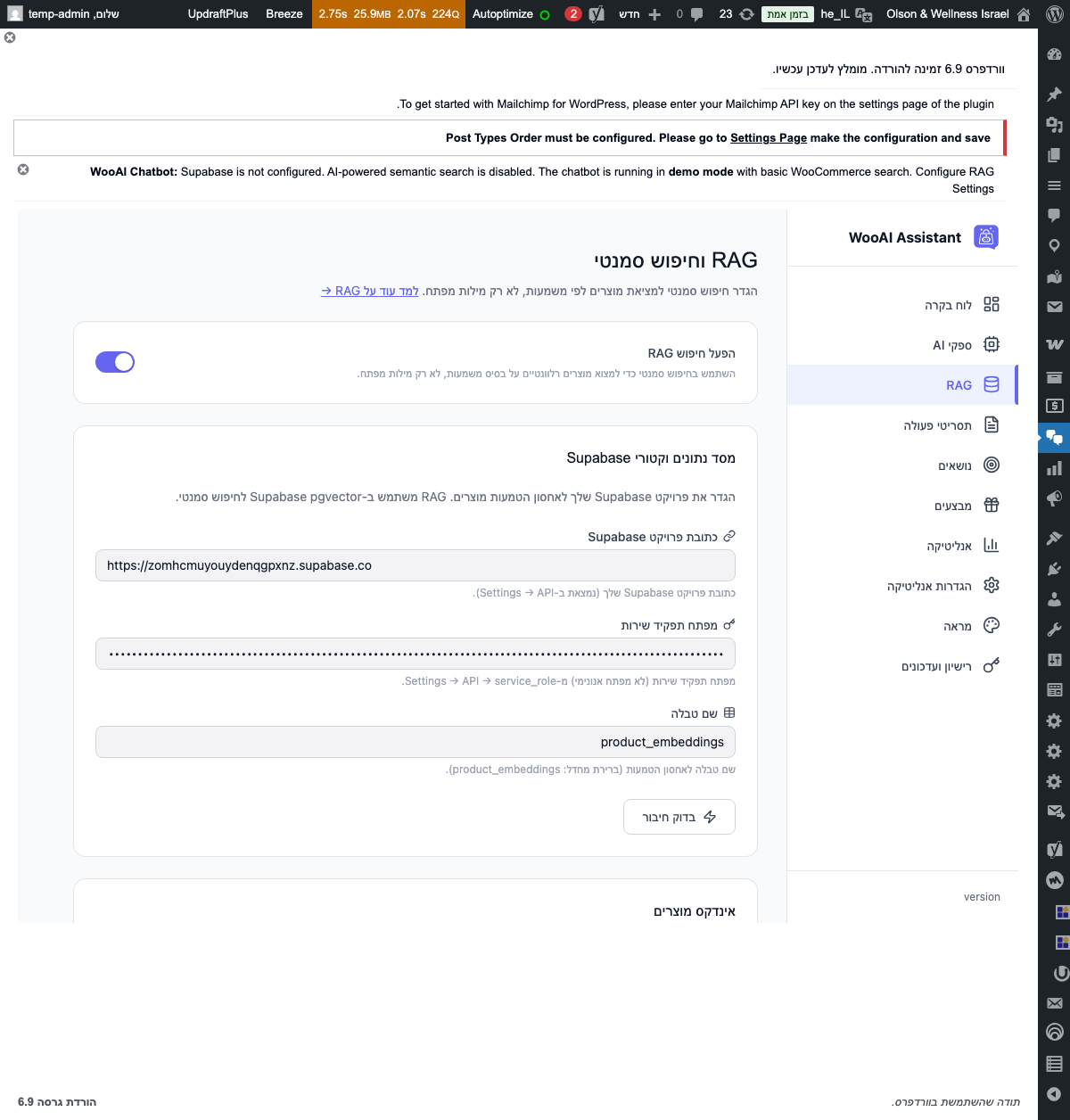
Product Indexing
After configuring Supabase, you need to index your WooCommerce products to make them searchable by the AI.
Initial Indexing
-
Click "Index Products"
In the RAG & Search settings, click the Index All Products button.
-
Wait for Processing
The plugin will process all your products in batches. A progress indicator shows the current status.
-
Verify Completion
Once complete, you'll see a success message with the number of products indexed.
Initial indexing typically takes 1-2 seconds per product. A store with 500 products will take approximately 10-15 minutes to fully index.
What Gets Indexed
The following product information is indexed for search:
| Field | Description | Search Weight |
|---|---|---|
| Product Name | The title of the product | High |
| Description | Full product description | High |
| Short Description | Product summary | Medium |
| SKU | Stock keeping unit | Medium |
| Categories | Product categories | Medium |
| Tags | Product tags | Low |
| Attributes | Color, size, material, etc. | Medium |
| Price | Current and sale price | Metadata |
| Stock Status | In stock, out of stock | Metadata |
Automatic Sync
WooAI Chatbot automatically keeps your index up-to-date:
- New Products: Automatically indexed when published
- Updated Products: Re-indexed when saved
- Deleted Products: Removed from index on deletion
- Price Changes: Updated in real-time
- Stock Changes: Synced on status update
To verify sync is working, make a small change to a product (like adding a word to the description), save it, then ask the chatbot about that product. It should reflect the change immediately.
Search Settings
Fine-tune how RAG search works with these configuration options:
Search Parameters
| Setting | Description | Default |
|---|---|---|
| Max Results | Maximum number of products to retrieve per query | 5 |
| Similarity Threshold | Minimum relevance score (0-1) for results | 0.7 |
| Include Out of Stock | Whether to show out-of-stock products in results | No |
| Search Categories | Limit search to specific product categories | All |
Similarity Threshold Explained
The similarity threshold determines how closely a product must match the query to be included in results:
- 0.9 - 1.0: Very strict - only near-exact matches
- 0.7 - 0.9: Balanced - good relevance (recommended)
- 0.5 - 0.7: Lenient - includes loosely related products
- Below 0.5: Not recommended - may return irrelevant results
Start with the default threshold of 0.7. If customers aren't finding products they're looking for, try lowering to 0.6. If results include too many irrelevant products, increase to 0.8.
Testing RAG Search
After setup, test that RAG is working correctly:
Using the Test Panel
-
Open Test Interface
In RAG & Search settings, find the Test Search section.
-
Enter a Test Query
Type a product-related query like "blue t-shirt size medium" or "laptop under $500".
-
Review Results
The test panel shows matched products with their similarity scores.
Frontend Testing
Test the actual customer experience:
- Visit your store's frontend
- Open the chatbot widget
- Ask product-related questions:
- "What running shoes do you have?"
- "Show me products under $50"
- "Do you have anything in red?"
- Verify responses include accurate product information
Advanced Configuration
Custom Embedding Model
By default, WooAI uses Google's text-embedding model. You can configure alternative embedding models:
| Model | Dimensions | Best For |
|---|---|---|
text-embedding-004 |
768 | General purpose (default) |
text-embedding-3-small |
1536 | Higher accuracy, OpenAI |
text-embedding-3-large |
3072 | Maximum accuracy, higher cost |
Database Optimization
For stores with over 10,000 products, consider these optimizations:
- Index partitioning: Split products by category for faster queries
- Batch processing: Increase batch size for initial indexing
- Regional selection: Choose Supabase region closest to your server
If you have more than 50,000 products, contact support for recommendations on database scaling and optimization strategies.
Troubleshooting
Connection Failed
If you see "Failed to connect to Supabase":
- Verify the Project URL is correct and includes
https:// - Check that the API key is the
anonkey, notservice_role - Ensure your Supabase project is active (not paused)
- Check if your server can make outbound HTTPS connections
Products Not Found
If searches return no results:
- Verify products have been indexed (check index count in settings)
- Lower the similarity threshold temporarily to 0.5
- Try searching for exact product names first
- Re-index products using the "Reindex All" button
Slow Search Performance
If searches are taking too long:
- Reduce "Max Results" setting to 3
- Check Supabase dashboard for database performance
- Consider upgrading Supabase plan for more resources
- Ensure Supabase region matches your WordPress hosting region
Index Sync Issues
If products aren't syncing automatically:
- Check WordPress cron is running (
wp cron event list) - Verify webhook endpoints are accessible
- Manually trigger re-index for specific products
- Check WordPress debug log for errors
Best Practices
Product Data Quality
- Write detailed descriptions: More text = better semantic matching
- Use consistent naming: Standardize terms like colors and sizes
- Add relevant attributes: Material, dimensions, use cases
- Update regularly: Keep descriptions current and accurate
Search Optimization
- Monitor queries: Check Analytics to see what customers search for
- Add synonyms: Include common alternative terms in descriptions
- Test regularly: Periodically test searches from customer perspective
- Review thresholds: Adjust based on result quality feedback
Performance
- Regional proximity: Host Supabase in the same region as WordPress
- Regular maintenance: Re-index monthly for optimal performance
- Monitor usage: Watch Supabase quotas on free tier
- Cache wisely: Enable caching for frequently searched products