Conversation Playbooks
Create automated conversation flows with the visual Playbook builder. Design custom responses, set up triggers, add conditions, and build sophisticated chatbot behaviors without writing code.
What are Playbooks?
Playbooks are visual conversation automation tools that let you define specific chatbot behaviors for different scenarios. Think of them as "recipes" that tell your chatbot exactly how to handle certain types of customer interactions.
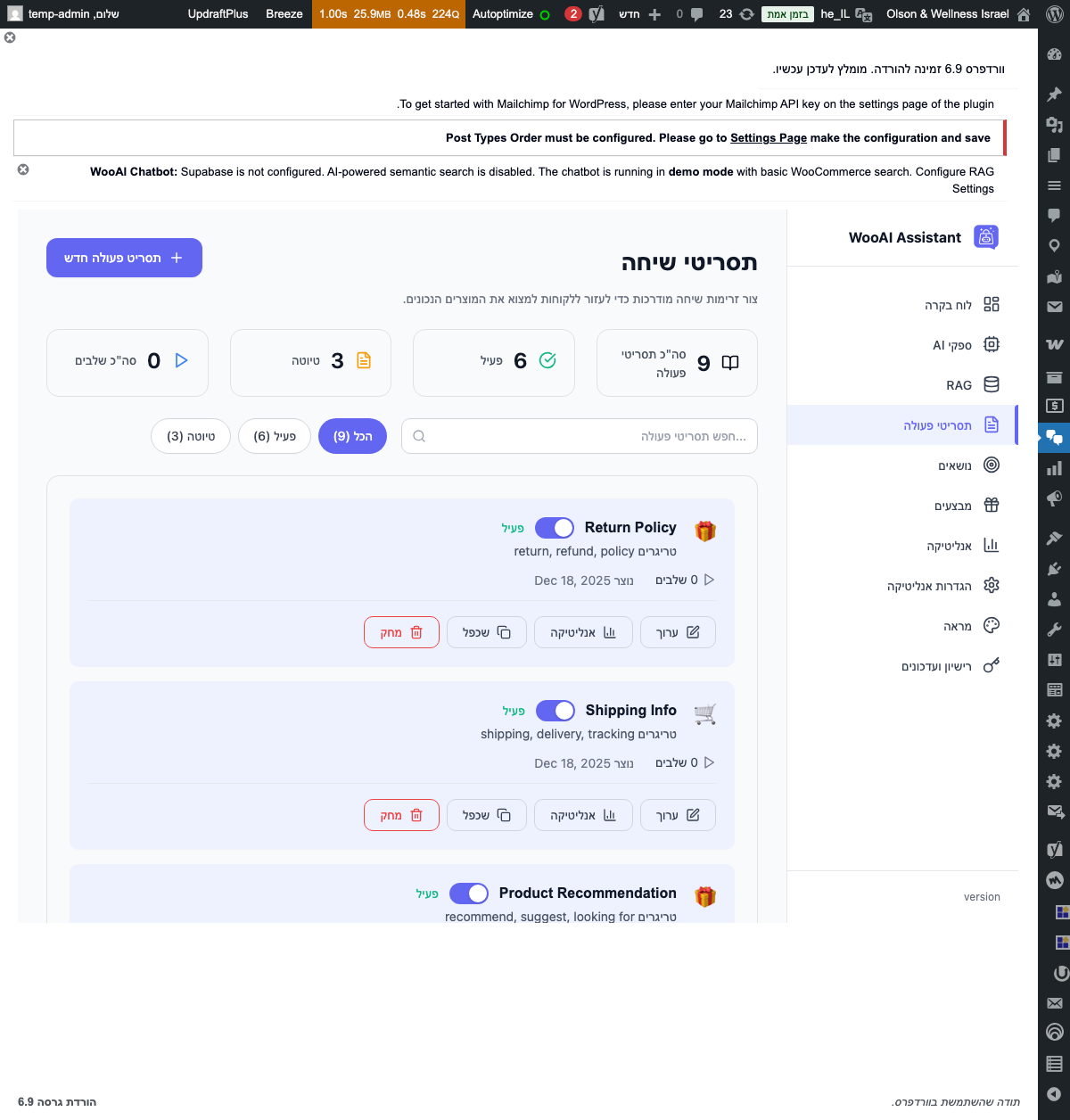
Accessing Playbooks
To manage your playbooks:
-
Open WooAI Menu
In WordPress admin, navigate to
WooAI Chatin the left sidebar. -
Select Playbooks
Click on
Playbooksto open the playbook management panel. -
View All Playbooks
You'll see a list of all existing playbooks with their status, triggers, and actions.
Creating a New Playbook
Step 1: Start New Playbook
-
Click "Create New"
In the Playbooks panel, click the Create New Playbook button.
-
Enter Basic Info
Provide a name and optional description for your playbook (e.g., "Shipping Inquiry Handler").
-
Open Editor
Click Edit to open the visual playbook editor.

Step 2: Add a Trigger
Every playbook starts with a trigger - the condition that activates the playbook.
Available Trigger Types
| Trigger Type | Description | Use Case |
|---|---|---|
| Keyword Match | Activates when specific words are detected | FAQ responses, common queries |
| Intent Detection | Activates based on AI-detected user intent | Complex inquiries, sentiment-based |
| Page Context | Activates on specific pages | Product pages, checkout, cart |
| User Property | Activates for logged-in users or specific roles | VIP customers, wholesale users |
| Time-Based | Activates during specific hours/days | After-hours, weekend messages |
Step 3: Add Response Actions
After a trigger fires, add nodes to define what happens next.
Step 4: Add Conditions (Optional)
Use conditional nodes to create branching paths based on customer responses or data.
Condition Types
- Text comparison: Check if response contains/equals specific text
- Number comparison: Compare values (cart total > $100)
- Boolean check: True/false conditions (is_logged_in)
- Data existence: Check if a variable exists
- Multiple conditions: AND/OR combinations
Dynamic Variables
Playbooks support dynamic variables that get replaced with real data at runtime.
Available Variables
| Variable | Description | Example Output |
|---|---|---|
{{customer_name}} |
Logged-in customer's name | John Smith |
{{customer_email}} |
Customer's email address | john@example.com |
{{cart_total}} |
Current cart total | $149.99 |
{{cart_items}} |
Number of items in cart | 3 |
{{current_page}} |
Current page URL | /product/blue-shirt |
{{product_name}} |
Current product (if on product page) | Premium Blue Shirt |
{{product_price}} |
Current product price | $49.99 |
{{store_name}} |
Your store name | Fashion Store |
{{current_time}} |
Current time | 2:30 PM |
{{user_input}} |
Last message from customer | Do you ship to Canada? |
Wrap variable names in double curly braces: {{variable_name}}. Variables that don't exist will be replaced with empty strings, so always test your playbooks.
Playbook Templates
WooAI Chatbot Pro includes pre-built templates to help you get started quickly.
Using Templates
-
Browse Templates
In the Playbooks panel, click Templates to view available templates.
-
Preview Template
Click on any template to see its structure, triggers, and responses.
-
Import Template
Click Use This Template to create a new playbook based on the template.
-
Customize
Edit the imported playbook to match your store's specific needs and branding.
Playbook Examples
Example 1: Product Recommendation
A playbook that recommends products based on customer preferences.
Keywords: "recommend", "suggest", "looking for", "help me find"
Flow:
1. Trigger: Keyword match detected
2. Message: "I'd love to help you find the perfect product!
   What category are you interested in?"
3. Quick Replies: [Clothing] [Electronics] [Home & Garden] [Other]
4. Condition: Based on selection
5. AI Response: "Search for top products in {selected_category}
   using RAG and recommend top 3"
6. Message: "Would you like me to add any of these to your cart?"
Example 2: Order Status Check
A playbook for customers checking their order status.
Intent: order_status OR Keywords: "order", "tracking", "where is my"
Flow:
1. Trigger: Intent or keyword detected
2. Condition: Is customer logged in?
   ├── Yes: Fetch recent orders automatically
   │   └── Message: "I found your recent orders: {{recent_orders}}
   │       Which order would you like to check?"
   └── No: Message: "Please provide your order number (e.g., #12345)"
       └── Action: Collect order_id input
3. Action: Lookup order status
4. Condition: Order found?
   ├── Yes: Message: "Your order {{order_id}} is {{order_status}}.
   │       {{tracking_info}}"
   └── No: Message: "I couldn't find that order. Please check the
       number and try again, or contact support@store.com"
Example 3: Size Guide Help
A playbook specifically for product pages that helps with sizing.
Page Context: Product page + Keywords: "size", "fit", "measurements"
Flow:
1. Trigger: On product page + size keyword
2. Action: Fetch product size guide
3. Condition: Size guide exists?
   ├── Yes: Message: "Here's the size guide for {{product_name}}:
   │       {{size_chart}}"
   │   └── Message: "What size do you normally wear?
   │       I can help you find your best fit."
   └── No: Message: "This product doesn't have a specific size guide.
       Standard sizing applies. What size do you usually wear?"
4. AI Response: "Based on their answer, provide personalized
   size recommendation"
Testing Playbooks
Always test your playbooks before activating them for customers.
Using Test Mode
-
Enable Test Mode
In the playbook editor, click the Test button in the toolbar.
-
Enter Test Input
Type messages that should trigger your playbook.
-
Review Flow
Watch how the playbook executes, see which nodes are triggered, and verify responses.
-
Check Variables
Verify that dynamic variables are being replaced correctly.
Always test playbooks thoroughly before enabling them. A broken playbook can frustrate customers and may cause them to leave without purchasing.
Testing Checklist
- ✓ All triggers fire correctly
- ✓ Conditions evaluate as expected
- ✓ Variables display correct values
- ✓ Messages are grammatically correct
- ✓ Flow ends properly (no dead ends)
- ✓ Edge cases are handled
- ✓ Works for both logged-in and guest users
Managing Playbooks
Enabling/Disabling Playbooks
Each playbook has an Active toggle that controls whether it's live:
- Active (ON): Playbook is live and will trigger for customers
- Inactive (OFF): Playbook won't trigger but remains saved for later use
Priority Order
When multiple playbooks could match a customer's message, the system uses priority order:
- Playbooks are evaluated in the order shown in your list
- The first matching playbook executes
- Drag and drop playbooks to reorder priority
Put more specific playbooks higher in the list. For example, "Track my order #12345" should come before general "Help with orders" to catch specific requests first.
Duplicating Playbooks
To create a variation of an existing playbook:
- Click the ⋮ menu on the playbook card
- Select Duplicate
- Edit the copy as needed
- Rename to distinguish from the original
Deleting Playbooks
To delete a playbook:
- Click the ⋮ menu on the playbook card
- Select Delete
- Confirm the deletion
Deleted playbooks cannot be recovered. Consider disabling instead if you might need the playbook again.
Best Practices
Design Guidelines
- Keep it conversational: Write responses like a helpful human, not a robot
- Be specific with triggers: Avoid overly broad keywords that match too many queries
- Provide escape routes: Always offer ways to reach human support
- Use quick replies: Offer clickable options when choices are limited
- Limit depth: Avoid flows deeper than 5-6 steps to prevent frustration
Performance Tips
- Test regularly: Review playbook performance monthly
- Monitor analytics: Check which playbooks are triggered most often
- Update seasonally: Adjust for sales, holidays, and promotions
- Gather feedback: Use customer feedback to improve flows
Common Mistakes to Avoid
- ❌ Triggers that are too broad (matching everything)
- ❌ Dead ends with no way forward
- ❌ Overly long messages that overwhelm customers
- ❌ Missing fallback for unexpected responses
- ❌ Not testing with real scenarios
- ❌ Forgetting to update after policy changes
Troubleshooting
Playbook Not Triggering
- Verify the playbook is set to Active
- Check trigger keywords/conditions are correct
- Ensure no higher-priority playbook is matching first
- Test the exact phrase customers are using
Variables Not Replacing
- Check variable syntax:
{{variable_name}} - Verify the variable exists for the context (e.g., cart_total only works with cart)
- Test with a logged-in user for user-specific variables
Conditions Not Working
- Review condition logic carefully
- Check data types match (string vs number)
- Use test mode to see actual values at runtime
- Simplify complex conditions to isolate issues